By the ZoomCap team.We make ZoomCap, which appears in this article. Prices and features were checked on each vendor's own site on September 29, 2026. Where we could not test a tool ourselves, we say so. How we test
Short answer
For most videos in 2026, the best format is MP4 with H.264 video and AAC audio: it plays in every browser, phone, editor and social platform. Add a WebM (VP9 or AV1) copy for website embeds you control, where smaller files matter. Keep MOV for Apple editing pipelines, not delivery. For a screen-recorded product demo, export 1920×1080 H.264 at 10–15 Mbps, 30 fps (60 for cursor-heavy motion). ZoomCap, the recorder we make, exports H.264 MP4 (720p up to 4K) or a GIF, encoded on your computer, with automatic zoom and captions, for $29 once.
The popular advice is to export one “best video format” and upload it everywhere. That advice fails as soon as your video leaves the editing timeline. A product demo needs sharp interface text, a website embed needs quick playback, and a vertical social post needs a different frame entirely. One file can't optimize all three jobs.
Treat format as a delivery decision, not a container debate. Keep one high-quality, compatibility-first master, then create channel-specific derivatives with the right codec, bitrate, resolution, aspect ratio, captions, and playback behavior. That approach gives you a durable source without forcing every platform to accept the same compromise.
The history of video formats supports this view. H.120 became the first digital video compression standard in 1984, H.261 became the first practical video coding standard in 1988, MPEG-1 followed in 1991, and MPEG-2 became central to DVDs and early digital television in the mid-1990s. H.264/AVC, introduced in 2003, later became the most widely used video coding format by 2016, according to this codec history from H.120 to AV2. Each generation suited the delivery systems of its time.
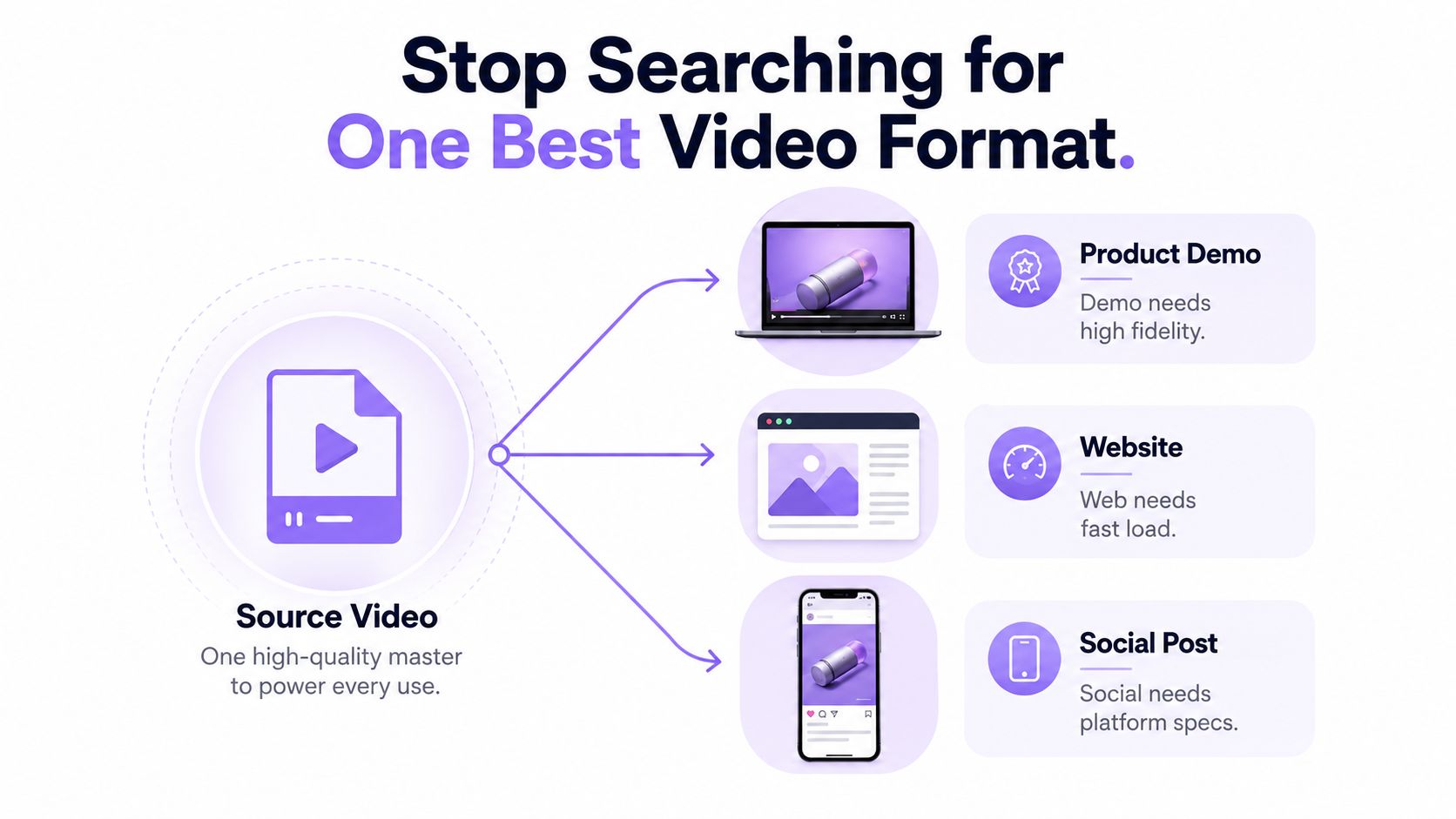
This guide gives you a practical export playbook. You'll get the vocabulary needed to make informed choices, a direct comparison of MP4, MOV, and WebM, codec recommendations for modern delivery, channel-specific settings, and a workflow that prevents bad uploads.
Stop searching for one best video format
There isn't one best video format. There's a best output for a destination.
A downloadable product walkthrough and an autoplaying website video may share the same source recording, but they don't have the same job. The downloadable file should open in common players and remain easy to edit later. The website version should start quickly and avoid unnecessary bandwidth. A social cut should survive aggressive mobile compression while keeping the cursor, labels, and captions readable on a small screen.
That's why “MP4 versus WebM” is an incomplete question. The container matters, but so do the codec inside it, the bitrate, the frame shape, the audio track, and the platform's own processing. You can export a technically excellent file that still performs badly because the UI becomes unreadable after downscaling or because the first useful frame takes too long to load.
Use a master plus derivatives
Export a compatibility-first master before you create platform versions. For most developer demos, that means an MP4 file using H.264 video and AAC audio. It won't provide the smallest possible file, but it gives you a broadly usable source for review, editing, client delivery, and future conversions.
Then create derivatives for the channels that need them:
- Product demo: Preserve interface clarity and motion detail.
- Website embed: Reduce file weight and enable fast progressive playback.
- Social post: Reframe the composition for square or vertical viewing, then add captions and protect important UI from overlays.
- Web performance: Add WebM with VP9 or AV1 when your playback environment supports it.
Practical rule: Keep your master clean and flexible. Optimize copies for distribution, not the original source.
This workflow also protects you from platform-specific surprises. A social service may recompress your upload, a browser may support the container but not the codec, and an editing application may handle MOV more gracefully than MP4. The next sections separate those decisions so you know what each setting changes.
Containers, codecs, and bitrates
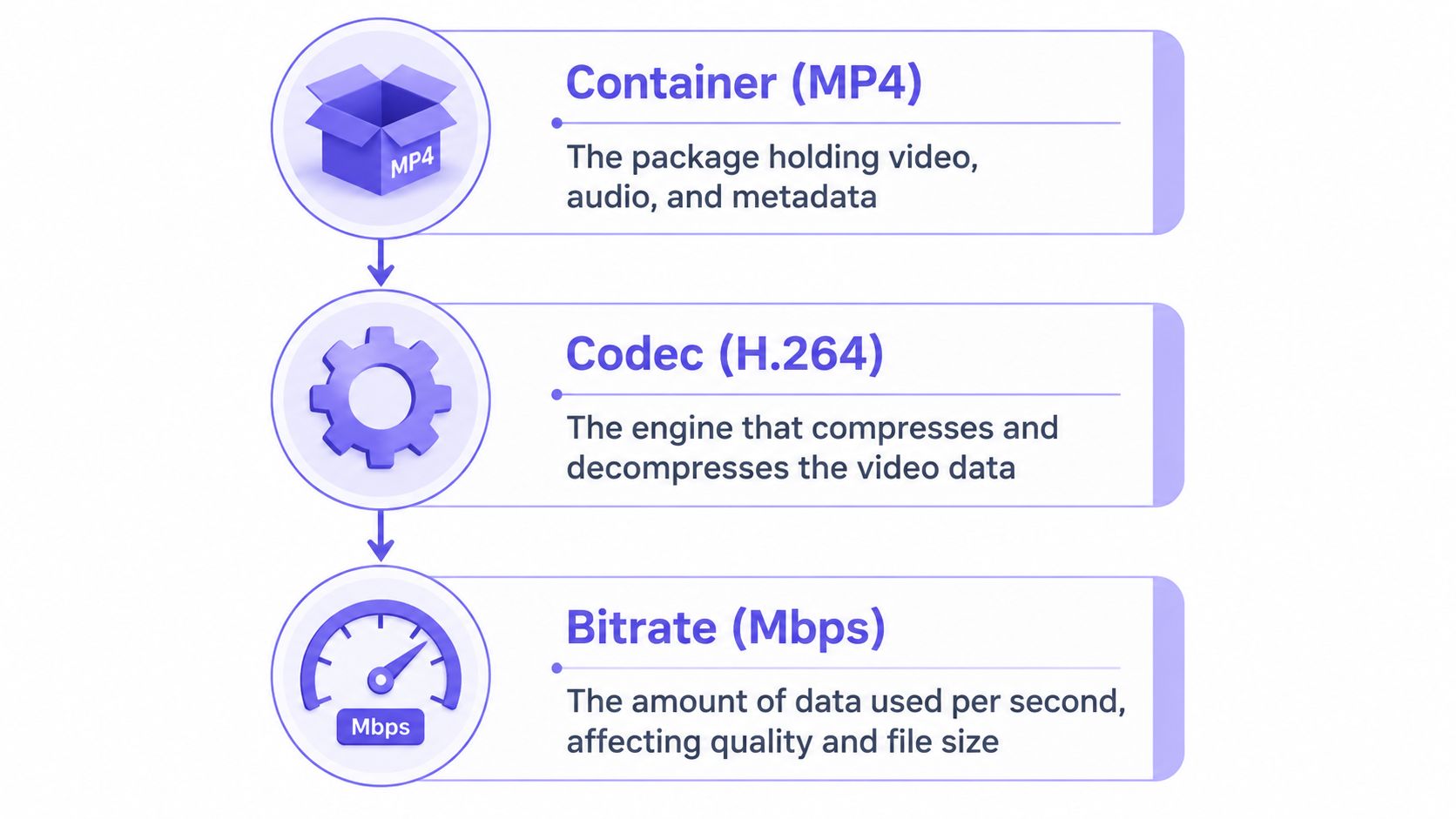
A demo can look sharp in your editor, then arrive blurry, silent, or unplayable after upload. The file's extension is only one part of that outcome. A delivery file combines a container, a codec, and a bitrate, and each controls a different part of playback and quality.
The container packages video, audio, subtitles, and metadata. MP4 is the familiar example. MOV is closely associated with Apple and QuickTime workflows, while WebM is designed around open web delivery.
The container does not determine how video pixels are compressed. That job belongs to the codec.
A codec is the compression and decompression engine. During export, it encodes frames into a smaller data stream. During playback, the device or browser decodes that stream back into images and sound. H.264, HEVC, VP9, and AV1 are codecs. MP4 and WebM are containers.
Canvas, repaint rate, and pipe size
Three export controls cause most confusion:
- Resolution is the canvas. A 1920×1080 video contains more pixels to describe than a smaller frame. That larger canvas can preserve interface detail, but it also gives the encoder more information to compress.
- Frame rate is the repaint frequency. At 30 fps, the player displays 30 frames each second. At 60 fps, it displays twice as many, which can make cursor movement and scrolling feel smoother. It also creates more data to encode.
- Bitrate is the pipe size. It describes how much data the video uses per second. A wider pipe generally preserves more detail, but it produces a larger file. A narrow pipe reduces storage and transfer demands, but can turn text edges, gradients, and motion into visible artifacts.
Bitrate is not a universal quality score. A modern codec may preserve similar perceived quality with less data than an older codec. A poorly chosen resolution or frame rate can still make the result look wrong. Balance visual complexity, playback support, and the channel's limits.
Container support is not codec support
A browser may recognize an MP4 file but fail to decode the codec inside it. The reverse can also happen. Changing a file extension does not convert a video, and placing an unfamiliar codec inside a familiar container does not guarantee playback.
For broad distribution, choose a widely supported pairing instead of judging the container alone. For a controlled website environment, offer multiple sources and let the browser select an appropriate one. That delivery decision matters more than finding one universally perfect file.
MP4, MOV, and WebM compared
MP4 remains the safest delivery container for a developer demo that needs to play across browsers, phones, televisions, consoles, editing tools, and social services. The common pairing, MP4 with H.264 video and AAC audio, trades some compression efficiency for broad interoperability, as outlined in this streaming codec guide.
MOV has a different role. It belongs in many Apple-centric editing pipelines because it can preserve production-oriented media and metadata in a way that suits post-production. It isn't the first choice for a public embed or a general-purpose download. Use it as an intermediate or archival asset when your editing workflow calls for it, then export a delivery file. (macOS's built-in recorder still writes .mov by default — see every Mac screen-recording option compared.)
WebM is the web specialist. It commonly carries VP9 or AV1 and can reduce transfer weight when the browser and playback environment support the chosen codec. It's a strong sibling to an MP4 web version, not a replacement you should blindly send to every audience.
| Container | Browser support | Mobile and social support | Typical file size | Best fit |
|---|---|---|---|---|
| MP4 | Broad support with common codec pairings | Broad support across phones and major platforms | Moderate, depending on codec and bitrate | Universal delivery, demos, downloads, platform uploads |
| MOV | More variable for direct browser playback | Useful in Apple workflows, less reliable as a universal social asset | Often larger in production-oriented workflows | Editing, intermediate files, Apple-focused pipelines |
| WebM | Strong for modern web playback, codec dependent | More variable outside browser delivery | Often smaller with VP9 or AV1 at comparable quality | Website embeds, bandwidth-sensitive web delivery |
The practical decision
Use MP4/H.264 as your compatibility fallback. If a client, viewer, support agent, or downstream tool needs to open the file without troubleshooting, this is the sensible starting point.
Use WebM with VP9 or AV1 when you control the website player and care about bandwidth efficiency. Keep MP4 available as a fallback because browser support, device age, and embedded playback environments still vary.
Keep MOV for the editing pipeline, not as your universal publication file. This separation avoids a common mistake: exporting a production file and assuming the same file is automatically optimized for every audience. The right rule is simple: master in a dependable container, then deliver MP4 or WebM according to the channel.
Picking the right codec in 2026
Stop treating codec selection as a search for one universal winner. It is a delivery decision. Choose a compatibility-first master, then create derivatives for channels where smaller files or higher efficiency justify slower encoding and narrower device support.
Codec choice balances compression efficiency, decoding support, encoding speed, and licensing exposure. H.264 remains the default when reach matters most. HEVC, VP9, and AV1 make more sense when bandwidth, storage, or high-resolution delivery outweighs universal playback.
Industry comparisons place H.264 at roughly twice the efficiency of MPEG-2, HEVC at up to 50% better compression than H.264, AV1 at about 20–30% better compression than HEVC, and VVC/H.266 at a targeted 30–50% improvement over HEVC, as summarized by DivX's codec evolution overview. These figures explain the push toward newer codecs, but they do not remove device, workflow, or licensing constraints.
| Codec | Efficiency vs H.264 | Hardware decode support | Encode speed | Licensing |
|---|---|---|---|---|
| H.264 | Baseline | Broad | Fast and widely optimized | Established patent licensing considerations |
| HEVC/H.265 | Typically about 50% more efficient than H.264 | Strong on newer Apple hardware and modern devices, less consistent elsewhere | Slower than H.264 in many workflows | More complex licensing requirements |
| VP9 | More efficient than H.264 for many web workloads | Strong in modern browser and streaming ecosystems, variable on older hardware | Moderate to slow, implementation dependent | Open web-oriented ecosystem |
| AV1 | Often about 20–30% more efficient than HEVC | Growing support, uneven across older devices | Usually slower to encode than H.264 | Open, royalty-free positioning, with implementation considerations |
The default recommendation
For a developer recording demos, export the primary master as MP4 with H.264. It minimizes playback tickets, failed uploads, and handoff problems across editors and devices. Preserve that master without channel-specific captions, overlays, or aggressive reframing.
Choose HEVC for a known audience using modern Apple hardware or another tested device matrix. HEVC became important for 4K and UHD delivery after its formal publication in 2013 by ITU-T and ISO/IEC, making higher-resolution streaming more practical. It remains a poor universal master because support and licensing requirements differ across ecosystems.
Choose VP9 or AV1 in WebM for a website you control, where file size matters and the player can provide an MP4 fallback. AV1 offers the strongest efficiency option here, but slower encoding and gaps on older hardware make it unsuitable as the only export for broad distribution.
Codec rule: H.264 wins the reach decision. AV1 wins the efficiency decision. The channel decides which decision matters.
Export settings for demos, web, and social
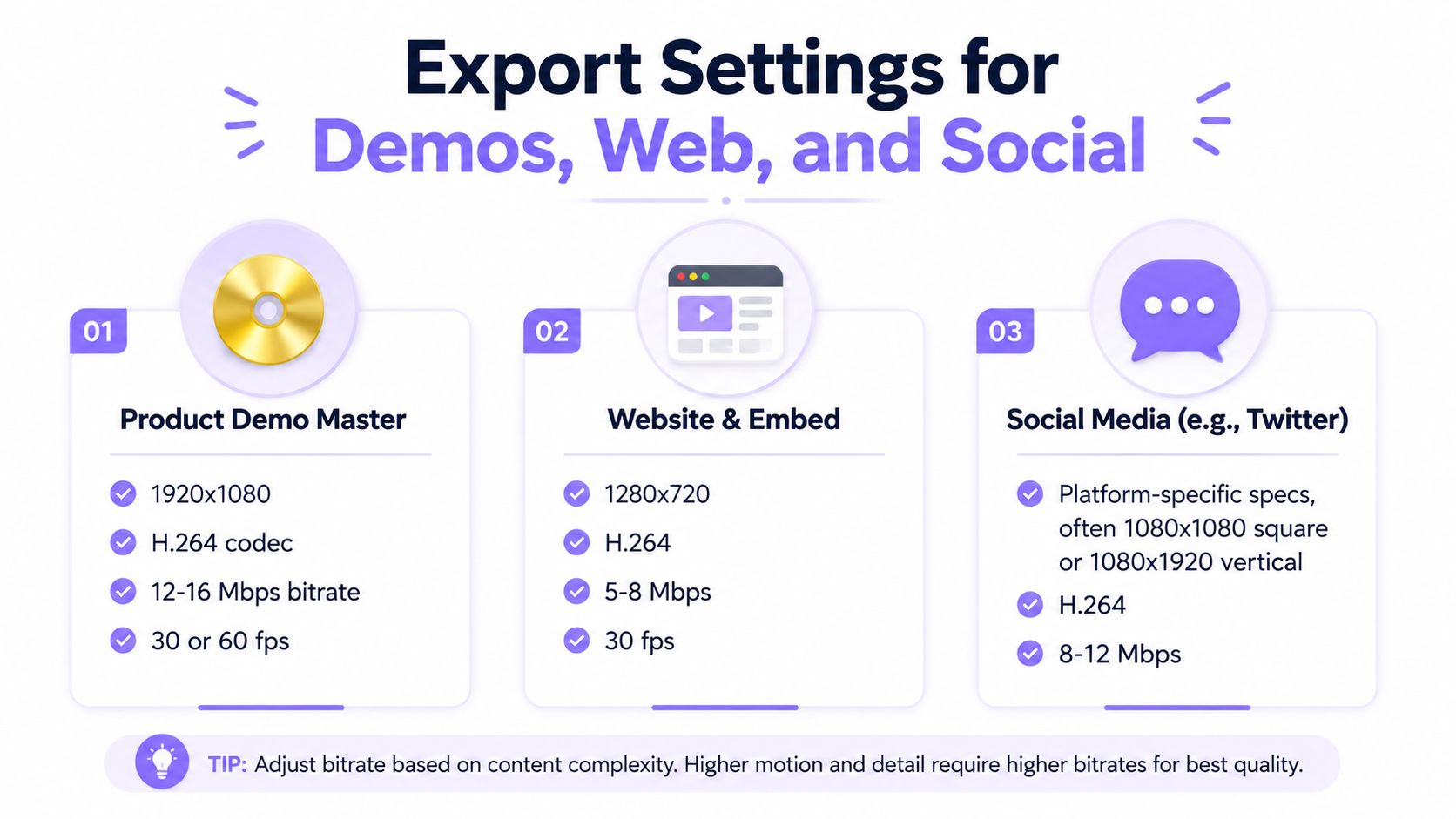
A 1920×1080 H.264 master at 14 Mbps preserves interface text better than a 20 Mbps file damaged by aggressive compression. Export for the delivery job, then create derivatives. One file rarely serves a product demo, website embed, and vertical social post equally well.
Product demo master
Use this baseline for a screen-recorded software walkthrough:
- Resolution: 1920×1080.
- Codec and container: H.264 in MP4.
- Bitrate: Target 10–15 Mbps. This range preserves code labels, interface text, and cursor detail without making the archival file unnecessarily heavy.
- Frame rate: 30 fps for ordinary interface movement, or 60 fps when scrolling and cursor motion need extra smoothness.
- Audio: AAC, stereo, 320 kbps.
- Color: Rec. 709.
Keep this master clean. Do not burn in platform captions, social overlays, or aggressive reframing. Preserve the file for later crops and edits, then create channel-specific exports from it.
If you record with ZoomCap, the editor exports this master as an H.264 MP4 from 720p up to 4K, and the same project can export the 9:16 or 1:1 social cut later without re-recording (more in where ZoomCap fits).
Website embed
Choose 1280×720 or 1920×1080, H.264 in MP4, at 5–8 Mbps, with fast-start enabled for progressive playback. Fast-start places relevant metadata where a player can begin playback before downloading the entire file.
Add a WebM sibling with VP9 or AV1 at 3–5 Mbps when bandwidth efficiency matters and your player can select it reliably. Keep the MP4 fallback. The video container comparison from Swarmify supports the broader delivery decision: the player, fallback, and browser matrix matter more than choosing a container in isolation.
If the selected derivative remains too large, use a browser-based video compressor, then inspect the result at its actual display size. A smaller file fails if code labels blur or pointer movement becomes difficult to follow.
YouTube long-form
For YouTube, export a high-quality H.264 master at 3840×2160 or 1920×1080. For 1080p60, target 35–45 Mbps as a strong upload source before YouTube's processing. Use HDR only when the project was mastered for HDR. An ordinary Rec. 709 screen recording should remain tagged as Rec. 709.
Shorts, Reels, and TikTok
Create a separate vertical composition:
- Frame: 1080×1920.
- Codec: H.264.
- Bitrate: 10–15 Mbps.
- Frame rate: 30 fps.
- Captions: Burn them in for predictable playback, or retain an SRT when the platform supports it.
- Safe area: Keep key UI and text at least 150 pixels from the top and bottom edges.
Captions must carry the message when viewers watch without sound. The captioning and vertical-video research synthesis links caption use with stronger completion behavior. For a technical walkthrough, readable captions and a deliberate vertical crop often matter more than selecting the most efficient codec.
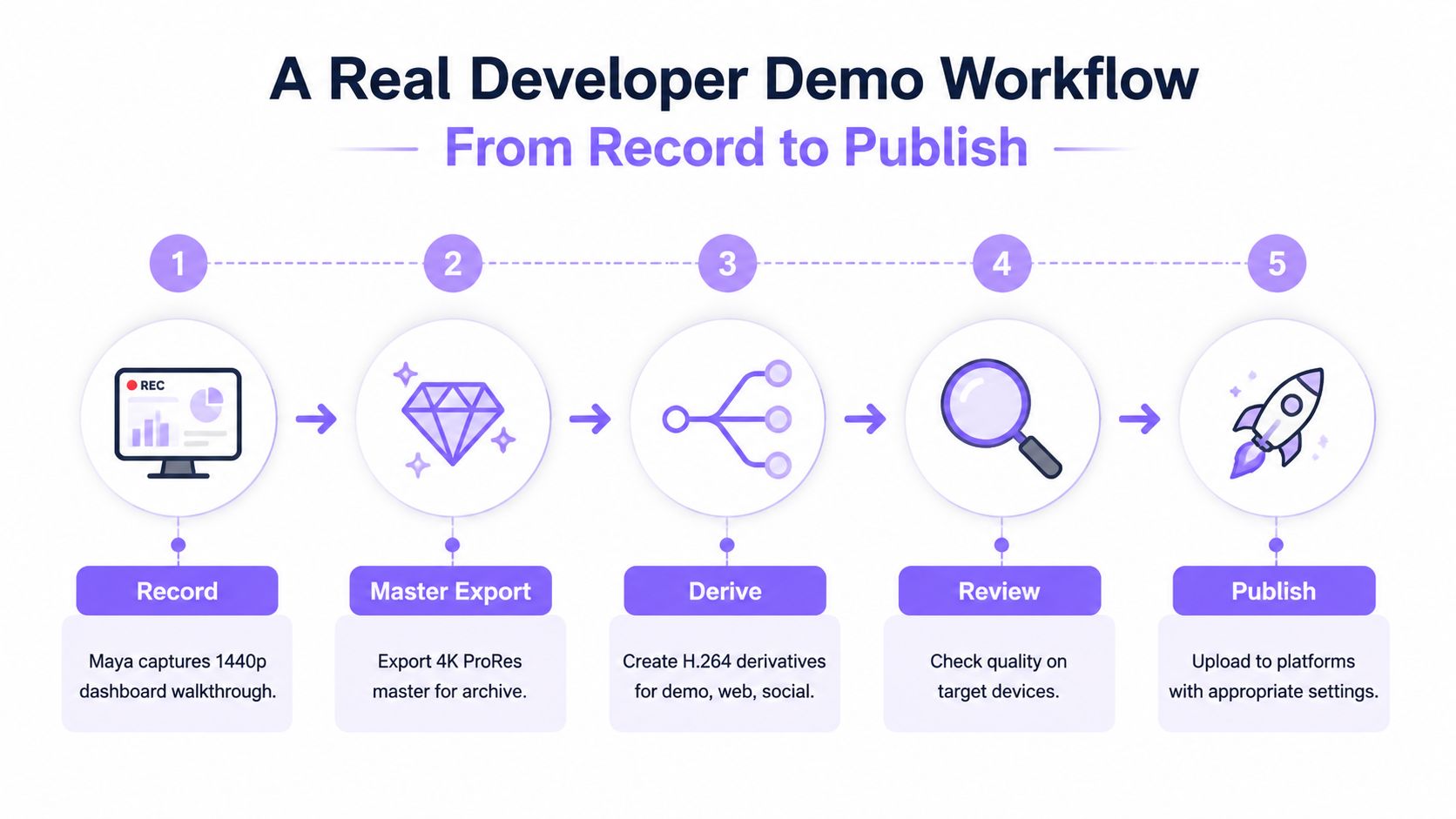
An example developer demo workflow from record to publish
Here is how the rules above play out on one launch, as an illustrative example. Maya, a frontend engineer, records a dashboard walkthrough for a launch. She captures the interface at 1440p, keeps the cursor visible, and records the complete flow before editing. Her first export isn't a social file or a blog embed. It's a 1440p H.264 MP4 master at a high bitrate (around 20 Mbps), kept for archive. She doesn't upscale it to 4K: resizing can't add detail the capture never had.
That master gives her a stable source for future crops and revisions. She then derives three publication files instead of asking one file to serve every channel.
Three exports, three jobs
The launch blog receives a 1080p H.264 MP4 at 10 Mbps with AAC at 320 kbps. Maya enables fast-start behavior so the browser can begin progressive playback without waiting for the complete file.
For visitors on slower connections, she creates a 720p VP9 WebM at 2.5 Mbps as the web sibling. The player can choose it when supported and fall back to MP4 when it isn't. She doesn't replace the MP4 because the fallback is part of the delivery design.
The social version is a 1080×1920 vertical cut reframed from the horizontal recording. Maya moves the crop around the active dashboard area, burns captions into the lower third, and protects the composition with a 150-pixel safe-zone margin. A direct horizontal resize would have made the interface too small, so reframing does more work than just changing the export dimensions.
Captions and review
Maya generates the captions once as an SRT file. She muxes that caption track into the blog MP4, then hard-bakes subtitles into the vertical social cut so they remain visible regardless of platform behavior.
Before publishing, she checks the files in a browser, a local media player, and a phone. She verifies that the first useful frame appears quickly, text stays readable, audio is synchronized, and social overlays won't cover important controls. The workflow takes roughly 40 minutes of export work for the three deliverables, but it leaves her with channel-correct assets rather than three bad uploads and a request to re-render.
For screen-recording problems such as tiny text, unclear cursor movement, or weak framing, review the practical fixes in why screen recordings look bad. The export is only part of the viewing experience.
Quick decision checklist before you hit export
Keep this list beside your editor:
- Name the destination. Is the file for a blog, a product page, YouTube, a social feed, a download, or an editing handoff?
- Identify the viewer's device. Broad public playback favors MP4/H.264. A controlled web player can justify WebM with VP9 or AV1.
- Protect the composition. Use horizontal framing for long-form viewing and create a separate vertical or square crop for social.
- Make captions deliberate. Use an SRT where the platform supports it. Burn captions into social derivatives when predictable visibility matters.
- Match resolution to the channel. More pixels won't fix a poor crop or unreadable interface. Choose the frame that fits the viewer's screen.
- Set bitrate deliberately. Bitrate controls the balance between detail, file size, transfer time, and compression damage more directly than most other export sliders.
- Match frame rates. Avoid unnecessary conversions between capture and export. Check cursor motion and scrolling after rendering.
- Check audio. Don't leave an unsuitable project default in place. Confirm codec, channel layout, synchronization, and loudness by listening on the target device.
- Export a master first. Keep the clean compatibility source, then derive platform files from it.
- Test the actual upload. A file that plays locally can still behave differently after platform processing.
If you need a lightweight animation or preview from a finished MP4, use the MP4 to GIF converter only when GIF is required. GIF isn't a universal video replacement, especially for audio-led demos.
The best video format is the one that reaches the intended viewer, preserves the information they need, and loads without unnecessary friction. That means an MP4/H.264 master plus WebM, vertical, or platform-specific derivatives when the delivery context calls for them.
Where ZoomCap fits in this workflow
We make ZoomCap, a screen recorder for demos, so weigh this accordingly. It covers the recording and master steps above: a free browser recorder in Chrome or Edge on any OS, a CLI for macOS and Linux (X11) that adds zooms from your clicks, and a browser editor that exports H.264 MP4 from 720p up to 4K, or a GIF. The same project can export 16:9, 9:16, 1:1 or 4:3 with the frame following the cursor, which is the reframing step Maya did by hand, and it can generate captions in the browser.
Everything is encoded on your computer; the video is never uploaded for rendering (the security page shows the data flow). The free plan includes 2 watermarked exports a month; paid plans cost $29 once or $12.49 a month (see pricing).
What it doesn't do matters here too: it exports MP4 and GIF only, so for the WebM sibling, ProRes or HEVC you still need ffmpeg, HandBrake or your editor. Speed changes apply to the whole video, and there's no motion blur. If you already have a finished recording and only need a different container or codec, ffmpeg or HandBrake (both free) handle that; for a GIF, our free MP4 to GIF converter runs in your browser without uploading the file.
Related reading
- Why your screen recording looks blurry or bad (12 fixes)
- Does Cmd+Shift+5 record audio?
- How to record your screen on a Mac
- How to record a terminal demo that doesn't suck
- Free in-browser video compressor
- Free MP4 to GIF converter
Frequently asked questions
What is the best video format in 2026?
There isn't one. Export a compatibility-first MP4 with H.264 and AAC as your master, then create derivatives: WebM with VP9 or AV1 for website embeds you control, and a separate vertical cut for Shorts, Reels, and TikTok.
Should I use MP4 or WebM for a website embed?
Offer both. Use WebM with VP9 or AV1 when bandwidth matters and your player can select it, and keep MP4/H.264 as the fallback. Browser support, device age, and embedded players still vary.
Is MOV better than MP4?
MOV belongs in Apple-centric editing pipelines as an intermediate or archival file. It is not the first choice for a public embed or a general-purpose download. Export MP4 or WebM for delivery.
Which codec should I use: H.264, HEVC, VP9, or AV1?
H.264 wins when reach matters. HEVC is a fit for a known modern-Apple audience. VP9 or AV1 in WebM wins when you control the website player and care about file size. Never ship AV1 as the only file for a broad audience.
What export settings should I use for a product demo?
A 1920×1080 H.264 MP4 at 10–15 Mbps, 30 fps (or 60 fps for cursor-heavy motion), AAC stereo at 320 kbps, Rec. 709. Keep that master clean, then derive web and social versions from it.
Record your next demo in the right format from the start. Try ZoomCap free in the browser recorder, or get unlimited exports with no watermark and the CLI with automatic zoom for $29 once on the pricing page.